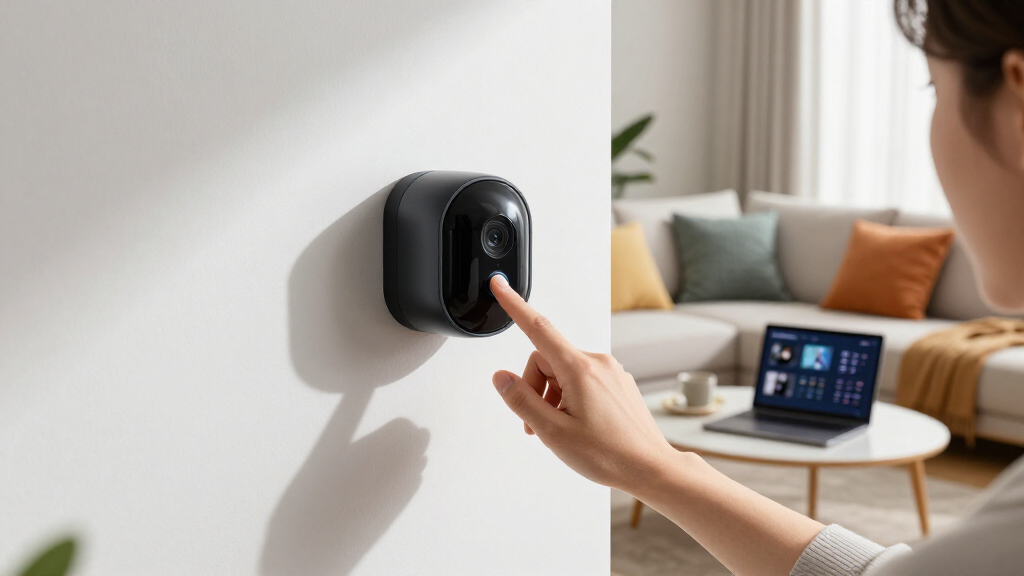
This guide walks you through installing and setting up a smart home security camera system. It is designed for homeowners or renters with some technical comfort, aiming to ensure your property is monitored effectively and securely. The process involves choosing the right equipment, installing cameras in optimal locations, and configuring remote access to view footage from anywhere.

Get home appliances delivered free with Prime
- Fast, free delivery on millions of items
- Prime Video, Amazon Music and more included
- Member-only deals all year

Blink Outdoor 4 Wireless Smart Security Camera System (3 Cameras, Sync Module Core)
- ✔ Battery Life: Up to 2 years
- ✔ Video Resolution: 1080p HD
- ✔ Night Vision: Infrared
Blink Outdoor 4 Wireless Smart Security Camera System (5 Cameras, 2-Year Battery Life)
- ✔ Field of View: 143° diagonal
- ✔ Resolution: 1080p HD
- ✔ Night Vision: Infrared
Blink Outdoor 4 Wireless Smart Security Camera System (2 Cameras, Sync Module Core)
- ✔ Battery Life: Up to 2 years
- ✔ Video Resolution: 1080p HD
- ✔ Night Vision: Infrared
Difficulty: Intermediate | Time: 1-2 hours
What You’ll Need
Tools & Materials:
- Drill (if mounting outdoors), screwdriver, power drill bits
- Smartphone or tablet with internet access
- Wi-Fi router with strong signal
- Ladder (if needed for high placements)
- Possibly a ladder or step stool for elevated spots
Knowledge:
- Basic understanding of Wi-Fi networks
- Ability to follow setup instructions on mobile devices
- Comfort with physical installation of hardware
Ensure your Wi-Fi network is stable and has good coverage at intended camera locations. Charge your mobile device fully before starting. Have your camera packaging and manuals ready for reference.
Blink Outdoor 4 Wireless Smart Security Camera System (3 Cameras, Sync Module Core)
The Blink Outdoor 4 System (3 Cameras) is our top pick for its combination of affordability, ease of setup, and reliable performance. It offers a long battery life of up to two years, making it low-maintenance, while providing crisp 1080p HD video and infrared night vision for around-the-clock security. The inclusion of three cameras makes it suitable for covering multiple entry points or larger yards. However, it lacks local storage—requiring cloud subscriptions for extended footage—and person detection features are subscription-dependent. Compared to larger systems, this pick offers excellent coverage at a lower total cost, but users needing advanced detection without ongoing fees might find it limiting.
Pros:
- Long battery life of up to two years
- 1080p HD live view with night vision
- Easy installation and wireless operation
- Supports two-way audio
Cons:
- No local storage included
- Person detection requires optional subscription
- Additional storage options sold separately
Best for: Homeowners looking for a reliable, budget-friendly outdoor security system with broad coverage
Not ideal for: Users desiring local storage without subscriptions or advanced AI detection features
Bottom line: A versatile, cost-effective system ideal for users seeking broad outdoor coverage without high ongoing costs.
“A versatile, cost-effective system ideal for users seeking broad outdoor coverage without high ongoing costs.”
Blink Outdoor 4 Wireless Smart Security Camera System (5 Cameras, 2-Year Battery Life)
This five-camera system is tailored for larger properties or those seeking comprehensive outdoor security. It offers the same core features as the smaller version—1080p HD video, infrared night vision, and two-way audio—but with increased coverage and a robust battery life of up to two years. The larger system is ideal for users who want to monitor multiple zones or entry points simultaneously. Its setup remains straightforward, and the included accessories make installation simple. The main tradeoff is the necessity of a subscription for cloud storage and advanced AI features like person alerts, which could add ongoing costs. Battery life may vary based on environmental factors, but overall, it balances coverage and convenience well.
Pros:
- Long-lasting battery with up to two years of life
- High-definition 1080p video quality with night vision
- Easy to set up with included kits and batteries
- Supports two-way audio and enhanced motion detection
Cons:
- Requires subscription for extended storage and AI features
- Local storage not included
- Battery life influenced by environmental conditions
Best for: Larger homes or properties needing multiple cameras with minimal maintenance
Not ideal for: Those unwilling to subscribe for cloud storage or AI detection features
Bottom line: A feature-rich, large-system setup perfect for comprehensive outdoor security, balanced by ongoing subscription costs.
“A feature-rich, large-system setup perfect for comprehensive outdoor security, balanced by ongoing subscription costs.”
Blink Outdoor 4 Wireless Smart Security Camera System (2 Cameras, Sync Module Core)
Our final pick is the two-camera system, designed for smaller setups or initial security, offering high-quality 1080p HD video, infrared night vision, and two-way audio. It boasts an impressive battery life of up to two years, reducing the hassle of frequent replacements. The compact design makes it easy to install in limited spaces, and it integrates seamlessly with Alexa for voice control. The main limitation is the lack of local storage—users must rely on cloud options—and advanced detection features are subscription-dependent. This setup is ideal for users who want straightforward, reliable security without extensive coverage or complexity.
Pros:
- Long battery life of up to two years
- Clear 1080p HD video with night vision
- Easy to install and integrate with Alexa
- Compact form factor
Cons:
- No local storage support
- Subscription needed for person detection
- Additional accessories sold separately
Best for: Small homes, apartments, or users starting with basic outdoor security
Not ideal for: Those needing extensive coverage or local storage options
Bottom line: A compact, easy-to-use outdoor security system suited for smaller spaces with minimal ongoing costs.
“A compact, easy-to-use outdoor security system suited for smaller spaces with minimal ongoing costs.”
As an Amazon Associate we earn from qualifying purchases.
Before You Start
Check that your Wi-Fi signal reaches where you plan to install cameras. Decide on camera locations ahead of time, considering field of view, lighting, and privacy. Confirm that your storage plan (cloud or local) is active or ready. Keep your camera’s power source nearby or ensure batteries are charged if using battery-powered models.
Step-by-Step Instructions
Step 1: Select suitable camera locations
Identify key points around your property that need monitoring, such as entrances, driveways, or backyard access points. Choose spots with clear sightlines, avoiding obstructions like dense foliage or overhangs. Ensure cameras will be within Wi-Fi range and have access to power if needed.
Tip: Use a camera’s field-of-view diagram to visualize coverage. Mount cameras at eye level or slightly higher for best surveillance angles.
Check: You have a list of at least 3 strategic locations with unobstructed views and reliable power or battery options.
Step 2: Install the cameras in chosen locations
Mount each camera securely using the provided brackets or mounts. For outdoor installations, use weatherproof mounting hardware. Drill holes if necessary, then fasten the camera firmly, ensuring it faces the targeted area. Adjust the camera angle after mounting for optimal coverage.
Tip: Avoid pointing cameras directly at bright lights or windows to prevent glare or reflections. Test the view before finalizing the installation.
Check: Cameras are mounted firmly, with a clear, unobstructed view of the intended area, and can be adjusted as needed.
Step 3: Connect cameras to power and Wi-Fi
Plug cameras into power outlets if wired. For battery models, insert and charge batteries fully before installation. Turn on each camera and ensure they enter pairing mode, indicated by a status light or app notification. Connect each camera to your Wi-Fi network via the manufacturer’s app, following on-screen prompts.
Tip: Keep your mobile device close to the camera during setup to establish a stable connection. Confirm your Wi-Fi password is correct to avoid connection failures.
Check: All cameras are powered on, connected to Wi-Fi, and recognized by the manufacturer’s app with live feed accessible.
Step 4: Configure camera settings and create user accounts
Open the security camera app on your device. Add each camera to your account if not done during setup. Adjust settings such as motion detection zones, recording schedules, and alert preferences. Set a strong, unique password for your account. Enable notifications for motion or sound detection if desired.
Tip: Test each camera’s view and settings before finalizing. Use the app’s live view to verify coverage and responsiveness.
Check: All cameras are configured with desired settings, and live feeds are visible and responsive in the app.
Step 5: Test the complete system
Simulate activity, such as walking past a camera or opening a door, to verify motion detection alerts and recording. Access the footage remotely from another device to confirm remote viewing works. Adjust camera angles or settings if necessary based on test results.
Tip: Record a short test clip to compare image quality and confirm settings are correct.
Check: You receive notifications for test activities, and footage is accessible remotely with clear image quality.
Common Mistakes to Avoid
- Mounting cameras too high or too low — Mount cameras at eye level or slightly above for the best coverage and detail.
- Obstructing cameras with objects or foliage — Choose locations with a clear line of sight and trim foliage if necessary.
- Using weak Wi-Fi signals or placing cameras outside Wi-Fi range — Test Wi-Fi strength at each location before installation or consider Wi-Fi extenders.
Troubleshooting
Problem: Camera not connecting to Wi-Fi
Solution: Ensure Wi-Fi password is correct, restart your router, and move the camera closer if needed.
Problem: Poor image quality or lag
Solution: Check camera placement for lighting issues, reduce network congestion, or upgrade your internet plan.
Problem: No motion alerts or recordings
Solution: Verify motion detection zones are set correctly, check notification settings, and ensure cameras are recording.
What Success Looks Like
The system functions reliably: cameras display clear live video, detect motion accurately, send timely alerts, and record footage properly. You can access the camera feeds remotely from multiple devices without lag or disconnections.
Next Steps
After setup, test your system regularly, update firmware, and review footage periodically. Consider expanding your camera network or integrating with alarms or smart locks for comprehensive security.
Frequently Asked Questions
Can I install smart security cameras myself?
Yes, most smart security cameras are designed for DIY installation, requiring basic tools and following manufacturer instructions.
How do I ensure my footage is private and secure?
Use strong, unique passwords for your accounts, enable two-factor authentication if available, and keep firmware updated to protect against vulnerabilities.
What is the best placement for indoor vs. outdoor cameras?
Indoor cameras should be placed at main entrances, living areas, and points of entry. Outdoor cameras need weatherproof mounting, covering driveways, yards, and entry points, with a clear view and minimal obstructions.
Do I need a subscription for recording footage?
Many systems offer free basic recording locally or via cloud, but advanced features or longer storage often require a subscription. Check your camera’s specifications and plans before purchase.
NFL season / tailgating Picks
team gear
As an affiliate, we earn on qualifying purchases.